Rip mode
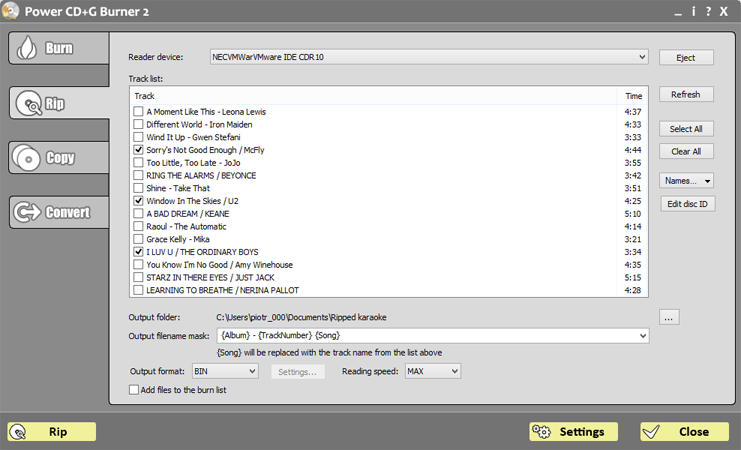
Reader device
Select one of the CD-ROM devices available on your computer.
Track list
Use checkboxes to select tracks to save on a hard disc. Use Refresh button to read a new CD. Use Select All and Clear All button to control the selection.
Double-click the item or click Edit button to edit song title.
Output folder
Power CD+G Burner will save CD+G tracks in this folder. Use [...] button to change the folder.
Output filename mask
Power CD+G Burner will save tracks using the name you specify in this field.
•
|
{Song} will be replaced with track name, so if you define 'CD1 - {Song}' as a filename mask, files 'CD1 - Track 01.bin', 'CD1 - Track 02.bin', etc. will be created. If track name is retrieved from FreeDB server, this will be usually artist name and song title.
|
•
|
{Album} will be replaced with the album name retrieved from FreeDB server.
|
•
|
{TrackNumber} will be replaced with the track number (with a leading 0 for tracks 01 - 09).
|
•
|
{Artist} will be replaced with artist name (artist name has to be separated by '/' [slash] from track title)
|
•
|
{Title} will be replaced with title (title has to be separated by '/' [slash] from artist name)
|
Note: to use {Artist} and {Title} markers each track name needs to be of the following format:
Artist name / Song title
Most FreeDB entries follow this rule.
Output format
You may choose one of 3 output formats:
•
|
BIN - single uncompressed file with both audio and graphics. Best for copying.
|
•
|
CDG+MP3 (also known as MP3+G) - two files (.CDG and .MP3) will be created. CDG file contains graphical information, while MP3 file contains the soundtrack. Use Settings button to adjust MP3 compression details.
|
•
|
CDG+WAV - as above, only uncompressed WAV files will be used for audio.
|
•
|
ZIP - compressed CDG+MP3
|
If Add files to the burn list is checked, Power CD+G Burner will automatically add the ripped files to the burn list (useful when making compilations).
|