Karaoke Video Creator
Click Create Video File button on the toolbar ( ) or select Create Video File command from Create menu. You may also press F2 key on the keyboard.
Input/Output
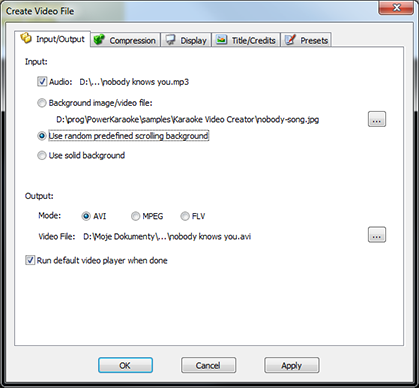
Input
Here you can define the audio track that will be used in the video and choose the background image or video.
There are three possible options for background. You may use a video or image file of your choice, you may use one of the predefined scrolling backgrounds (they are located in %APPDATA%/Doblon/Karaoke Video Creator/Backgrounds folder), or you may use a solid background.
Output
This defines the location of video file that will be created. You may choose the format of the video:
AVI |
Windows video file format. Use to play on computer or on DivX-capable players |
MPEG |
Universal video format. Use for DVD creation and iPod and iPhone files |
FLV |
Flash video. Use for web |
If Run default video player when done Karaoke Video Creator will open the newly created file and play it using system's default player for AVI files..
Compression
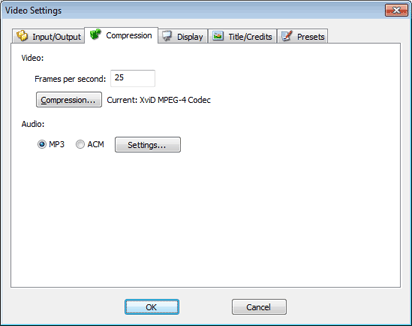
Video
This section defines video compression and frame rate. Compression button allows to choose from video encoders that are installed in the system.
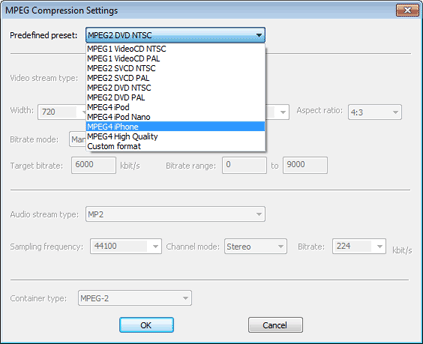
With MPEG encoding selected you may choose one of the predefined MPEG encoding presets (VideoCD, DVD, iPod, iPhone) or choose custom format and adjust all encoding parameters.
Audio
Choosing MP3 will result in audio channel encoded to MP3. You may change MP3 encoding parameters with Settings button.
Choosing ACM allows to choose from Audio Compression Manager codecs installed on your computer. Use Settings button to select the encoder and adjust the parameters.
Display
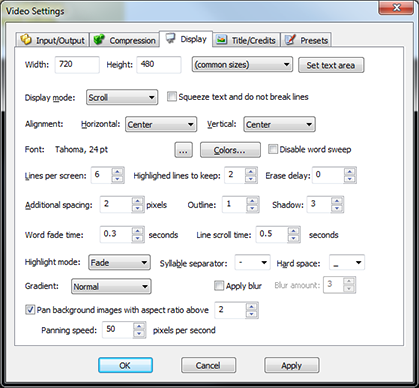
Width/Height
Defines the resolution of the created video. Set text area button allows to define which part of the video should be used to display lyrics. You may use Common sizes list to quickly select one of common resolutions.
Display mode
You may also select the text display mode. Choosing Page by page will result in the standard paged display. Overwrite will disable the screen erasing and the new words will overwrite the already sang. And Scrolled mode will generate the long flow of text that will move upwards with the highlighted line always in the middle.
Mode information on display modes can be found in Display modes section.
Squeeze text and do not break lines
When this option is selected Karaoke Video Creator will not break lines -- it will resize it horizontally so every line fits the screen. This may help placing the text in the song, but if the lines are too long may decrease the readability of the text.
Vertical alignment
Allows to change the placement of the lines of the text. You may select Center, Top, or Bottom which would place the text at the appropriate part of the screen, or choose Space evenly, which makes sure that the first line is at the top, the last at the bottom, and all the spaces between the lines are equal.
Horizontal alignment
This setting controls the way the individual lines of text are placed. You have the choice of Center, Left, and Right.
Font
This setting specifies which font will be used for the lyrics and how large the letters should be. If you are trading you PK2 files make sure that you use fonts that are installed on the destination computer.
Colors
Allows to change the background, border and text color. Simply choose the appropriate color from the list or use More button to select the custom color.
Lines per screen
Allows to specify the maximum number of lines to be shown. Note that if the font size is too large, the actual number of lines may be lower.
Number of highlighted lines to keep
If using scrolling or overwrite display mode this parameter controls the number of lines that have already been sung but are not erased yet.
Additional spacing
The number of pixels to insert between the lines.
Outline/Shadow
This values control the effect added to the text. Setting them to zero disables the effect. The color of the text effects can be set in Colors dialog box.
Word fade time
To make the video look better words are faded in when displaying and faded out when erasing. This value controls the time fade takes.
Line scroll time
This value defines the time used to scroll the lyrics in scrolling display mode.
Highlight mode
Here you can select whether word should be simply swept with the color or somewhat nicer 'fade' effect should be used.
Syllable separator
Allows to select the character that separates syllables in the song text. By default the syllable separator is a hyphen (-).
Hard space
This option allows to change the default character that will be displayed as a space, but does not split the word (e.g. hard_space will be treated as a single word). By default the hard space character is an underline (_).
Gradient
To make the lyrics look better %APPNAME% applies gradient effect to the text it displays. This setting allows to control the intensity of the effect.
Apply blur
If you would like to blur the final image, you may define the level of blur to apply.
Pan background images with aspect ratio above X
If an image selected for the background is at least twice as wide as it is tall, %APPNAME% will scroll it from left to right and back. This creates a very nice visual effect. You may define the speed of the animation. We have provided a set of wide images to use as backgrounds, they are installed with the program.
Title/Credits
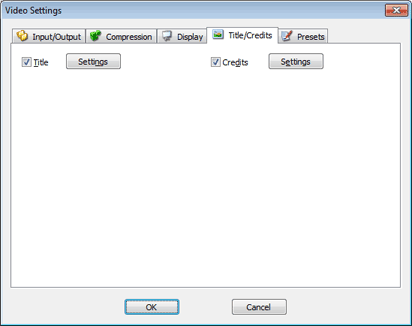
This group of options allows to select the pictures that are to appear before the song and after the song. By default these pictures are disabled.
To learn more about using images in Karaoke Video Creator see Images section.
Presets
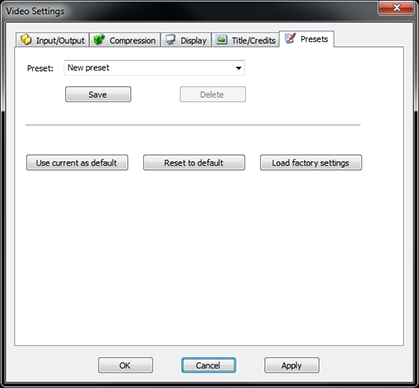
You may save a current set of options and use it later for different song using the Save button. To invoke the preset select if from a pop-down list. To delete the existing preset use Delete button.
If you would like to use current settings every time you start the program, click Use current as default button. You may also revert to this saved default settings using Reset to default button. It is also possible to revert settings to factory defaults.